How to Record Your Driving Route on Google Maps, iPhone, Android and Waze
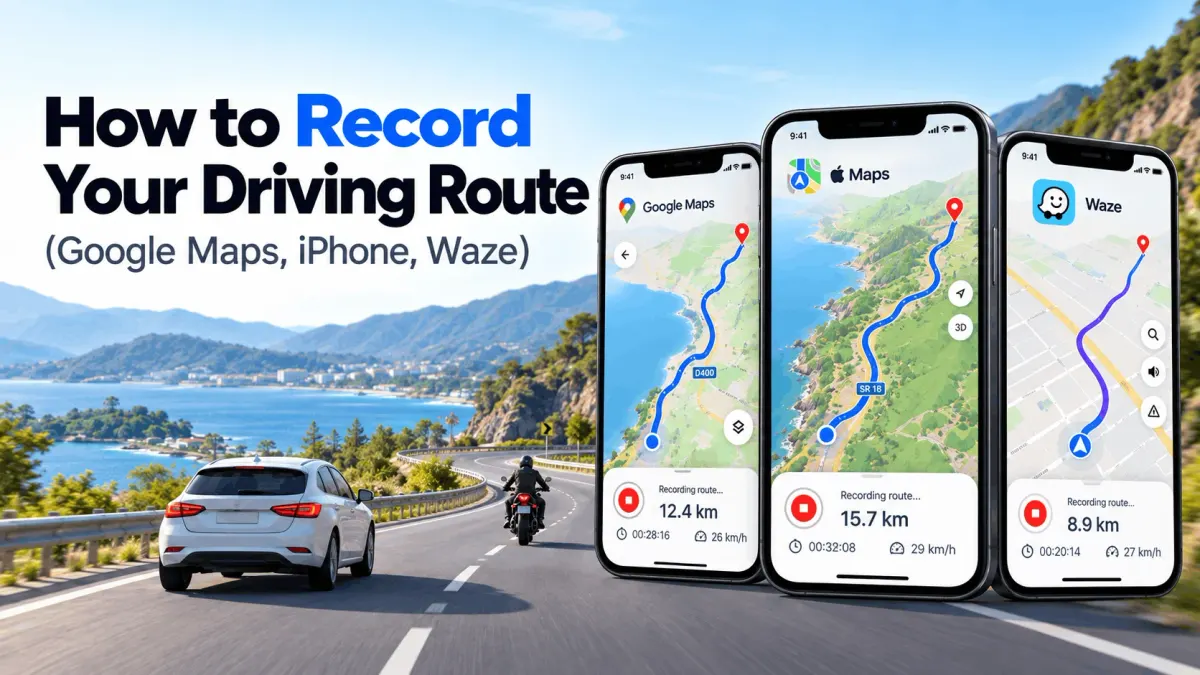
You took a great back road last weekend, and now you can’t remember a single turn. Been there. Here’s the deal: most map apps are built to get you somewhere, not to remember how you got there. So if you want to know how to record your driving route, you need to know what each app really saves, and where it falls short.
This guide walks through Google Maps, iPhone and Apple Maps, Android and Waze, one by one. Each part says plainly whether the app can do it, then shows the fix that actually works. No fluff, just the steps.
Which Apps Can Record Your Driving Route?
None of the big navigation apps has a real “record” button for drives. Some keep a rough history in the background, though, and that can be good enough in a pinch.
| App | Records the path you drove? | Where to find it | The catch |
|---|---|---|---|
| Google Maps | Sort of, through Timeline | Your profile picture, then Your Timeline | Lives on one phone, auto-deletes after 3 months by default on new devices, routes are guessed |
| Apple Maps (iOS 26) | No, places only | Places, then Visited Places | Saves where you stopped, not the road between |
| Waze | Yes, in the background | Waze Map Editor, Drives tab (on a computer) | Only drives with Waze running, no times or speeds |
| Route Recorder app | Yes, point by point, turn by turn, with multiple stops | Inside the app | Needs background location set up right |
If you just need a rough idea of where you went, the built-in history might do. If you need the exact road, a file you can keep, or proof of a trip, an all-in-one app like Route Recorder GPS Tracker is the way to go.
Why Navigation Apps Don’t Save the Road You Drove
Map apps look ahead, not back. They’re tuned to plan a route, watch traffic and get you there fast, and once you arrive, the job is done as far as they’re concerned. Your actual path is kept only as a side effect of location history, if it’s kept at all.
There’s a privacy angle too, plain and simple. Storing every road you drive is a lot of personal data, so Google and Apple have both moved that history onto your phone. That’s good for privacy, but it means the history is easier to lose.
Recording a Route vs Saving a Route: Not the Same Thing
This is where a lot of folks get tripped up. Many guides online say Google Maps can “save a route,” and it can. But that’s a route you plan, not one you drive.
- Saving (or pinning) a route keeps directions from A to B so you can reuse them. The app picks the roads.
- Recording a route logs the GPS points your phone passes as you move. You pick the roads, and the app writes them down.
Say your buddy shows you a shortcut through the back streets. A saved route won’t capture that at all, and that’s the moment most people start searching for how to save the route I drove.
Can Google Maps Record Your Driving Route? The Real Answer
Can Google Maps track my route? That’s the big question, and the answer is no, not with a start and stop button. Google Maps has no “record drive” mode, no matter what some blog posts claim. What it does have is Timeline, which can log your trips in the background if you set it up first. It’s a decent fallback, but if you search for a Google Maps record route button, you won’t find one.
What Google Maps Saved and Pinned Routes Actually Do
If you’ve looked up how to record route on Google Maps, you’ve probably landed on pinned routes. They’re handy for your commute, no doubt about it. You plan a drive, tap Pin, and it shows up under the Go tab next time (Fox News). But the route is the one Google picked for you. Your detours and shortcuts aren’t saved anywhere in that pin.
How Timeline Logs Your Drives Now That It Lives On-Device
Timeline used to sit in the cloud, so a new phone got all your old trips back. That’s no longer how it works. Google moved Timeline onto each device and shut off web access, with final deadlines reported as late as June 9, 2025 (Android Authority).
Two things changed for drivers. First, each phone now keeps its own timeline, and they don’t sync together (Popular Science). Second, if that phone breaks or gets wiped, the history can go with it. In March 2025, a “technical issue” deleted Timeline data for some users, and only people with encrypted backups turned on could get it back (The Register).
Turn On Timeline and Raise Auto-Delete Past 3 Months
Here’s a gotcha that catches a lot of people off guard. When Timeline is switched on for the first time on a new device, Google Timeline auto-delete is set to 3 months by default. So that road trip from last spring? It may already be gone.
- Open the Google Maps app and tap your profile picture.
- Tap Your Timeline. If Timeline is off, you’ll be asked to turn it on.
- Open the Timeline settings and find Auto-delete.
- Change it from 3 months to a longer window, or turn it off if you want to keep everything.
- Turn on encrypted backup so a lost phone doesn’t take your trips with it.
Menu names shift a bit between Android and iPhone, so poke around if something isn’t where you expect it.
Find a Past Drive by Date in the Google Maps App
- Open Google Maps and tap your profile picture.
- Tap Your Timeline.
- Tap the calendar icon and pick the day you drove.
- Tap a trip to see the line on the map, plus the start and end times.
If the day is blank, Timeline either wasn’t on yet or that trip has already been auto-deleted. Turning it on today won’t bring back old trips.
Where Timeline Falls Short: Gaps, Guesses and No Export
Timeline is a best guess, not a GPS track. It mixes GPS, Wi-Fi and other signals, then works out the trip after the fact. That’s why you’ll sometimes see a straight line cutting through a field, or a drive marked as a walk.
- Gaps: if your phone is in battery saver or location is off, chunks of the drive just vanish.
- Guesses: the road drawn may not be the road you took, especially on rural routes.
- No easy export: there’s no simple “share as GPX” button for a single drive, so you can’t open it in Google Earth or another app without extra work.
- One phone only: switch phones without a backup and you start from zero.
For casual “where did I go last Tuesday” questions, Timeline does the trick. For a precise path you can keep and share, read on.
How to Record Your Driving Route on iPhone, Step by Step
Apple Maps can’t record the road you drive either, even after the iOS 26 update. It now remembers places you stop, which is nice, but the line between them isn’t saved. To record a driving route on iPhone, you’ll need a route recorder app and the right location settings.
Apple Maps Visited Places in iOS 26: Places, Not Paths
With iOS 26, Apple added Visited Places, a private list of spots you’ve been. You’ll find it by tapping your profile picture, then Places, then Visited Places (MacRumors). You can also pick how long visits are kept, from a few months up to forever.
The big catch is easy to miss, though. As heise put it, Apple doesn’t track your route, only your location (heise). So you’ll see the diner you stopped at, but not the mountain pass you took to get there. It’s great for jogging your memory, but it’s not a drive log.
Settings You Need: Always Location and Precise Location
iPhones are strict about apps using GPS in the background, and honestly, that’s for good reason. But it means a recorder can quietly stop if the settings aren’t right. Apple’s own developer forums are full of threads about background location acting up (Apple Developer Forums).
Before your first drive, check these:
- Go to Settings > Privacy & Security > Location Services and make sure it’s on.
- Tap your recorder app and set location to Always, not “While Using the App.”
- Turn on Precise Location for that app.
- Go to Settings > General > Background App Refresh and allow it for the app.
- Turn off Low Power Mode during long drives, since it can limit background work.
Also, don’t swipe the app away in the app switcher while it’s recording. That’s a classic way to lose half a trip.
Record a Drive on iPhone With a Route Recorder App
A route recorder app logs your GPS position every few seconds and draws the real line you drove. The flow is pretty much the same in most apps:
- Install from the App Store: Route Recorder GPS Trip Tracker App.
- Allow location Always when the app asks.
- Tap Start before you pull out.
- Lock your phone and drive. Recording keeps going in the background.
- Tap Stop when you arrive, and the trip is saved to Saved Routes.
- Open the trip later to replay it or share it. With Premium, you can also export it.
Tip: do a short test drive around the block first. If the line looks right, you’re good for the long haul.
How to Record Your Driving Route on Android Phones
Android gives you two options: Google Maps Timeline (covered above) or a GPS logger app that records the actual track. For a clean line you can keep, go with the app. The one thing that trips people up on Android isn’t the app itself. It’s the phone killing it in the background.
Stop Battery Optimization From Killing Your Recording
This is the big one, hands down. To save battery, many Android phones shut down apps running in the background, and a route recorder is exactly that kind of app. Samsung, Xiaomi and OnePlus phones are known for being extra strict about it. The result is a trip that just stops halfway, with no warning at all.
The fix on most phones:
- Open Settings > Apps and tap your recorder app.
- Tap Battery and pick Unrestricted (or “Don’t optimize”).
- Under Permissions > Location, choose Allow all the time.
- Turn on Use precise location.
Route Recorder helps on its end too. Once location permission is allowed, it keeps recording with the screen off, so you can lock your phone, toss it in the cup holder and drive. It also gives you three GPS accuracy modes, so you decide how much battery each trip uses:
| Mode | Accuracy | Best for |
|---|---|---|
| High Accuracy | About 5 m | The most detail, but it uses the most power |
| Recommended | About 10 m | Everyday drives, with a good balance of detail and battery |
| Battery Saver | About 30 m | Long trips, since it records fewer location points |
Like any GPS app, Route Recorder uses battery while it records, and higher accuracy uses more. So for a long highway day, switch to Battery Saver and you’re good to go (Route Recorder).
Samsung, Xiaomi and OnePlus Settings to Check First
Some brands add their own layer on top, so you’ll want to double-check these spots:
| Phone brand | Extra setting to change |
|---|---|
| Samsung | Settings > Battery > Background usage limits: add the app to Never sleeping apps |
| Xiaomi / Redmi / POCO | App info > Autostart on, and Battery saver set to No restrictions |
| OnePlus / OPPO / realme | Battery > App battery management: allow background activity |
| Google Pixel | Usually fine once battery is set to Unrestricted |
Menus get renamed with updates, so if something’s missing, just search your Settings for “battery” or “background.”
Record, Pause and Save a Drive With a GPS Logger App
Once the settings are sorted, the part where you record my drive on Android (or yours) is the easy bit:
- Install from Google Play: Route Recorder GPS Logger App.
- Tap Start before you drive. Keep the phone on a charger for long trips.
- Tap Pause for a long stop if you don’t want the parking lot in your track.
- Tap Stop when you’re done, and the trip is saved to Saved Routes.
Check the saved trip right away for the first few drives. If you see a long straight line jumping across the map, the app was killed for a while, so go back and recheck the battery settings.
Keep a Backup: Export the Route as a GPX or KML File
A route stuck inside one app is only half saved. When you export a drive to GPX, you own it, even if you switch apps or phones later.
- GPX is the standard GPS track format. Most map, hiking and driving apps can open it.
- KML is Google’s format. It opens straight in Google Earth and can be imported into Google My Maps.
With Route Recorder Premium, open Import / Export from the menu, choose Export GPX or Export KML, and save the file to Google Drive or email it to yourself. That way your routes stay safe, whatever happens to your phone.
Does Waze Record Your Route? Yes, but It’s Hidden Away
Yes, Waze does keep a record of your drives, which surprises a lot of people. Its terms say it builds a route history of the journeys you make while using the app, tied to your account and kept for a limited time (Waze Privacy Policy). The odd part is that you can’t see that history in the app. You have to go to a computer.
Find Old Drives in the Waze Map Editor Drives Tab
The trick comes from Waze’s own community forum, and it works like a charm:
- On a computer, go to waze.com/editor.
- Log in with the same account you use in the Waze app.
- Click the Drives tab in the top left.
- Pick the day and time you want, and the route shows up on the map.
A few things to know. Only drives where Waze was running get logged. Long drives can take a few hours to show up, and some forum users say trips closed in poor signal areas may never appear (Waze forum). And yes, some articles say there’s a “History” menu in the app.
What Waze Drive History Won’t Show: Times and Speeds
The Drives tab gives you the line and that’s about it. You won’t see the time at each point, how long you stopped, or how fast you went (Waze forum). There’s no export button either.
So Waze is great for answering “which street did I turn on?” after the fact. But if you need timestamps, speed, or a file you can hand to someone, a dedicated recorder is still the better bet.
How to Track a Road Trip From the First Mile to the Last
A road trip is where recording really pays off. You get a map of every mile to look back on, share with friends, or plan the next one from. The trick is picking the right app to record a road trip and doing a bit of prep, so it doesn’t quit on day two.
Set Up Before You Leave: Storage, Charger, Permissions
Get these sorted in your driveway, not at a gas station 300 miles out:
- Location set to Always (iPhone) or Allow all the time (Android)
- Battery optimization turned off for the recorder app
- A car charger or power bank, since GPS plus screen time drains a phone fast
- Enough free storage for long tracks and any photos
- Offline maps downloaded for areas with spotty signal
- A 5-minute test recording, checked on the map
Record Each Day as One Trip or Keep One Long Journey
There’s no right answer here, just what works for you. One trip per day is the safer bet. Files stay small, a crash only costs you one day, and you can name each leg, like “Day 3: Moab to Durango.”
One long recording is nice for a single big map, but it’s riskier. If the app gets killed overnight or the file gets corrupted, the whole trip is on the line. Most people find that daily trips are the sweet spot, and many apps can show them together on one map anyway.
Replay, Share and Map the Whole Trip When You Get Home
When you’re back, this is the fun part. Here’s what you can do with your recorded road trip:
- Replay it in the app to relive each day, turn by turn.
- Share it with friends or family.
- Export it as GPX or KML (in Route Recorder, export is part of Premium) and open it in Google Earth for a 3D flyover.
- Drive it again by following the saved route next time.
And export your trips as files, even if you never plan to use them. Phones get lost, apps get uninstalled, and a GPX file on your Google Drive will outlast both.
Using a Recorded Route as Proof of Where You Drove
A lot of people want to record their driving route for work or for peace of mind, not just for fun. A clean GPS track can back up your side of the story. It just has limits you should know up front.
Delivery, Sales and Field Work: Logging Work Routes
If you drive for work, a saved track shows where you went and when. That’s handy when a customer says you never showed up, or your boss asks why a route took longer. Record the whole shift, name each trip clearly, and export it at the end of the week so there’s a backup outside the app.
One warning, though. Any background tracker can miss a stretch if the phone shuts it down or loses signal for a while. So check your tracks now and then, and don’t wait until the day you really need them.
Tickets and Accidents: What a GPS Track Can and Can’t Show
A track can show which roads you took and roughly when. It’s useful for jogging your memory after a fender bender, like whether you turned on 80th Street or the one after it. But it’s not a guarantee in court.
- GPS can drift by several meters, more so between tall buildings or under trees.
- Many apps don’t record speed at every point, and Waze history shows no speed at all.
- A Waze forum volunteer pointed out that a court may question data anyone could log in and view from another phone (Waze forum).
Treat a recording as supporting evidence. If it really matters, talk to a lawyer about what will hold up.
Choosing a Driving Route Recorder App: What to Check
The app store is packed with route trackers, and most look alike in screenshots. Before you pick one, check these two things.
Background Reliability Matters More Than Extra Features
The worst thing a recorder can do is stop silently. Read the recent reviews and search for words like “stopped,” “didn’t save,” or “lost.” A plain app that records every trip beats a fancy one that drops half of them. Then do your own test drive before you trust it on a big trip.
Privacy Labels: Where Your Route History Is Really Stored
Your route history says a lot about you: home, work, and every place in between. So look at the privacy label before you install. On the App Store, scroll to App Privacy. On Google Play, find Data safety. Look for whether location is shared with third parties or used for ads, and whether your trips stay on your phone or go to a cloud server.
No app is a magic bullet here. Just pick one whose label matches what you’re comfy with.
Conclusion: The Easiest Way to Record Every Drive
So, can you record your driving route with the apps already on your phone? Only partly. Google Maps Timeline guesses your trips and keeps them on one phone, Apple Maps saves places but not the roads between them, and Waze hides a bare-bones drive log in its Map Editor. They’re fine in a pinch, but none of them was built to remember the road you actually drove.
If you want the real path, start to finish, Route Recorder does the job in one app. Tap Start, lock your phone and drive. You can replay the trip later, share it or follow it again, and with Premium you can export it as a GPX or KML file. Set your location permission and battery settings once, pick Battery Saver for long trips, and you’re all set. Your next road trip, work route or shortcut through the back streets won’t slip through the cracks again.
Ready to give it a spin? Download GPS Route Recorder for iPhone or Android and record your first drive today.


Driving Route Recording FAQs
1. Can Google Maps record the route I drove?
Not directly. There’s no record button, but Timeline can log trips in the background if it’s turned on. The route it shows is a best guess, and it’s stored on your phone only.
2. How do I see where I drove yesterday on Google Maps?
Open Google Maps, tap your profile picture, then Your Timeline, and pick yesterday’s date. If it’s empty, Timeline wasn’t on.
3. Does Waze keep a history of my drives?
Yes. Log in at waze.com/editor on a computer and open the Drives tab. It shows the route only, with no times or speeds.
4. How do I record my driving route on iPhone?
Install a route recorder app, set its location access to Always with Precise Location on, tap Start, and drive. Apple Maps alone won’t save the path.
5. Does Apple Maps save the routes I’ve driven?
No. iOS 26 added Visited Places, which saves spots you stopped at, but not the roads between them.
6. Is there an app that records your route while driving?
Yes. Route Recorder works on iPhone and Android, logs your exact path, and lets you replay and share it. With Premium, you can also export it.
7. Why did my route recording stop in the background?
Usually it’s battery optimization (Android) or location set to “While Using” (iPhone). Fix those settings and test again.
8. How do I export a recorded route to Google Maps or Google Earth?
Export the trip as KML or GPX from your recorder app (in Route Recorder, export is part of Premium). Open KML in Google Earth, or import it into Google My Maps.
9. Can a recorded GPS route be used as proof for a ticket?
It can support your side, but it’s not a sure thing. GPS can drift, and speed data is often missing. Ask a lawyer if it matters.
10. How do I track a road trip on my phone?
Set up a recorder app with background location and battery settings, record one trip per day, and export each day as a GPX file (in Route Recorder, export is part of Premium).